EXCEL · VBA · ADD-IN
When a macro stops serving a single workbook and starts solving the same problem across different files, it often makes sense to turn it into a reusable tool. In Excel, one of the simplest ways to do that is an .xlam add-in.
From macro-enabled file to small tool
For a long time I used .xlsm files containing macros designed to work on other workbooks: finding columns, normalising data, preparing outputs, applying checks or automating repetitive operations. They work, but they have an obvious limitation: the code stays tied to the file that contains it.
An add-in separates the code container from the workbook being processed. Once loaded into Excel, its procedures are available while the user works on other files. It is a small architectural change, but it makes reusable VBA utilities much easier to organise.
Converting to XLAM
If the original macro file is already well structured, the conversion itself is straightforward:
- Open the Excel file containing the VBA code.
- Choose File → Save As.
- Select Excel Add-In (*.xlam) as the file type.
- Save it in Excel’s AddIns folder or in an explicitly managed location.
- Open Developer → Excel Add-ins.
- Enable the new add-in.
The important part is not the extension change. It is how the code is written before it becomes an add-in.
The code must stop depending on its own workbook
A common problem is relying on implicit references such as ActiveWorkbook, ActiveSheet or unqualified ranges. They may feel convenient in a personal file; in an add-in they quickly become ambiguous, because the code lives in a hidden workbook while the user is working in another one.
I therefore prefer to make the target objects explicit: workbook, worksheet, table, range and parameters. That makes the code more predictable and easier to reuse in different contexts.
From macro to Excel command
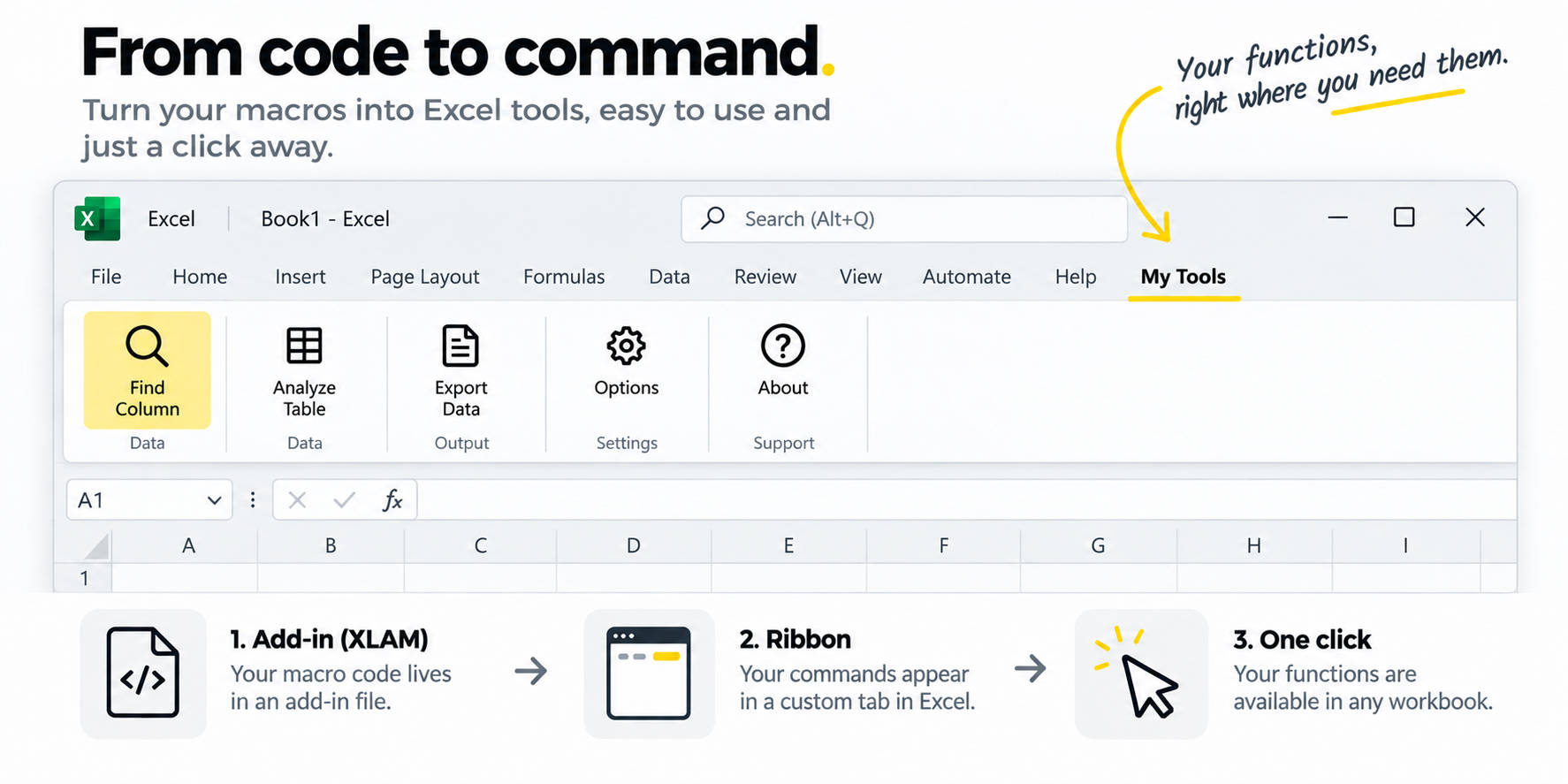
An add-in is not only a better place to keep reusable VBA. It can also turn a macro into a visible Excel command. By integrating it with the Ribbon or the Quick Access Toolbar, a procedure can be exposed through a recognisable button and launched with a single click, independently of the workbook currently open.
This changes the user experience more than the underlying technology suggests. The user no longer needs to know where the macro lives, open the VBA editor or choose it from a list. The technical implementation stays inside the add-in; what appears in Excel is simply another command.
MACRO IN A FILE → ADD-IN → RIBBON BUTTON → AVAILABLE IN ANY WORKBOOK
When an add-in is a good fit
The .xlam format works well for personal or small-team utilities: table helpers, checks, exports, formatting tools, query generators, import procedures or any action that needs to be available across different workbooks.
It is particularly useful when the problem is repetitive but does not justify a separate application. The user stays in a familiar environment while shared logic is centralised in one component.
Where it is not enough
An add-in does not automatically solve distribution, versioning or security. If a tool must be used by many people, updated centrally or connected to sensitive data, those aspects need to be designed separately. The same applies to macros that depend on local paths, embedded credentials or machine-specific configuration.
Not every macro should become an add-in either. If a procedure belongs to one workbook and depends heavily on its structure, keeping it inside that file can remain the clearer choice.
A simple example: finding a table column quickly
As a small example, I keep available an add-in I originally built to move more quickly through Excel tables with many columns. It is deliberately simple, but it illustrates the idea well: a useful function that belongs in many files does not need to be copied into every workbook.
Principle: if a macro solves the same problem in several files, it is often worth separating it from those files and treating it as a tool.