An Excel file can become difficult to use long before it becomes technically complex. It happens when the user has to know too much: which sheet to open, which query to refresh, which cells not to touch and in which order to perform the steps.
Reduce unnecessary decisions
If the process has a clear flow, the interface should reflect it. A few inputs, a few buttons and clear messages are often more useful than a workbook full of options.
Separate configuration from operation
Technical parameters can live in a visible but separate configuration sheet. The operational user should instead see only what is needed to complete the current task.
Automate the path, not only the calculation
A useful macro does more than run a calculation faster. It can check prerequisites, import data, refresh queries, verify the outcome and prepare the output. That is the point where the spreadsheet starts behaving like a small tool.
The final criterion
If using the file requires an instruction page longer than the interface itself, there is probably still design work to do.
A good Excel tool hides complexity without hiding control.
When a macro stops serving a single workbook and starts solving the same problem across different files, it often makes sense to turn it into a reusable tool. In Excel, one of the simplest ways to do that is an .xlam add-in.
From macro-enabled file to small tool
For a long time I used .xlsm files containing macros designed to work on other workbooks: finding columns, normalising data, preparing outputs, applying checks or automating repetitive operations. They work, but they have an obvious limitation: the code stays tied to the file that contains it.
An add-in separates the code container from the workbook being processed. Once loaded into Excel, its procedures are available while the user works on other files. It is a small architectural change, but it makes reusable VBA utilities much easier to organise.
Converting to XLAM
If the original macro file is already well structured, the conversion itself is straightforward:
Open the Excel file containing the VBA code.
Choose File → Save As.
Select Excel Add-In (*.xlam) as the file type.
Save it in Excel’s AddIns folder or in an explicitly managed location.
Open Developer → Excel Add-ins.
Enable the new add-in.
The important part is not the extension change. It is how the code is written before it becomes an add-in.
The code must stop depending on its own workbook
A common problem is relying on implicit references such as ActiveWorkbook, ActiveSheet or unqualified ranges. They may feel convenient in a personal file; in an add-in they quickly become ambiguous, because the code lives in a hidden workbook while the user is working in another one.
I therefore prefer to make the target objects explicit: workbook, worksheet, table, range and parameters. That makes the code more predictable and easier to reuse in different contexts.
From macro to Excel command
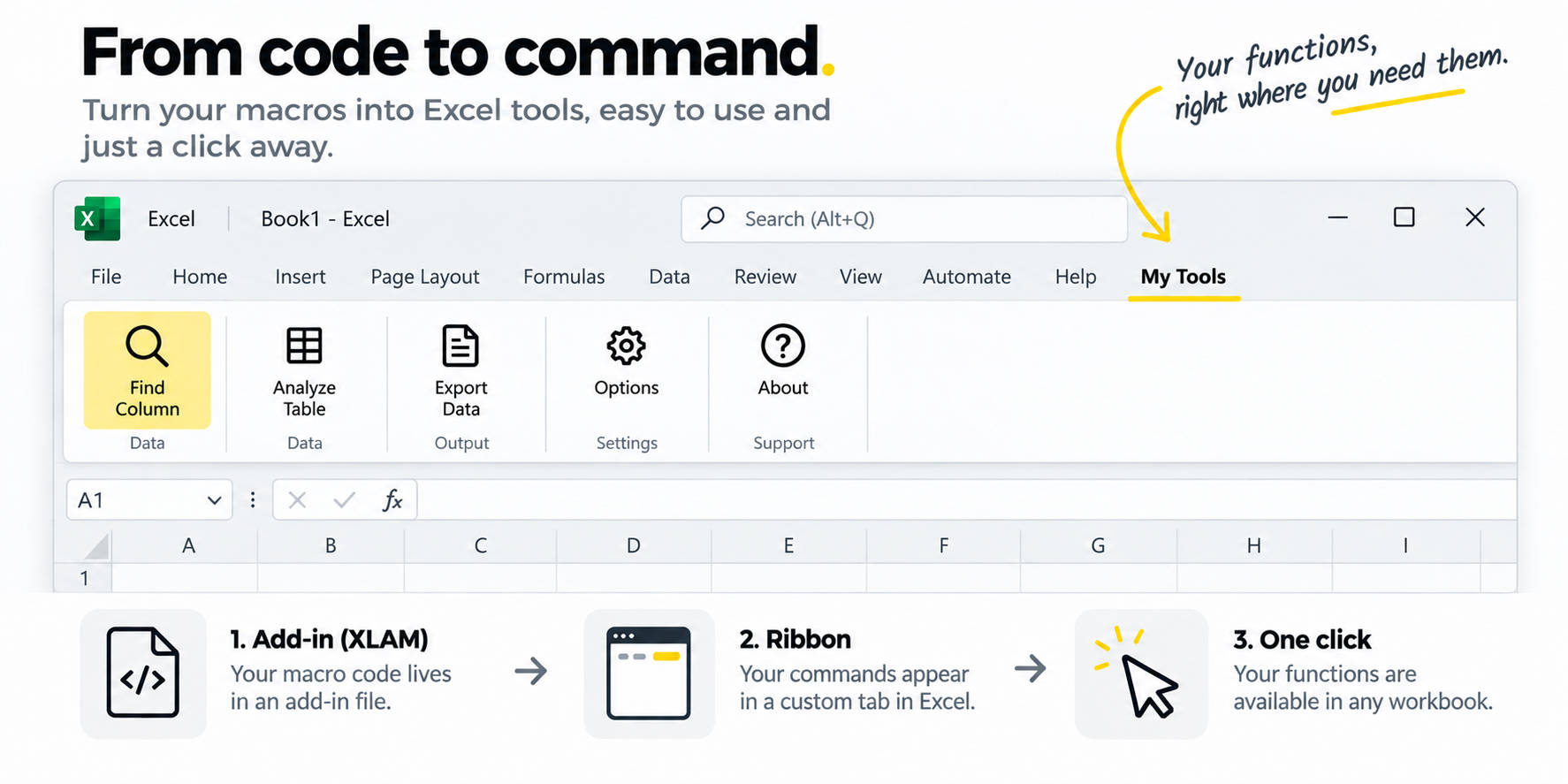
An add-in is not only a better place to keep reusable VBA. It can also turn a macro into a visible Excel command. By integrating it with the Ribbon or the Quick Access Toolbar, a procedure can be exposed through a recognisable button and launched with a single click, independently of the workbook currently open.
This changes the user experience more than the underlying technology suggests. The user no longer needs to know where the macro lives, open the VBA editor or choose it from a list. The technical implementation stays inside the add-in; what appears in Excel is simply another command.
MACRO IN A FILE → ADD-IN → RIBBON BUTTON → AVAILABLE IN ANY WORKBOOK
When an add-in is a good fit
The .xlam format works well for personal or small-team utilities: table helpers, checks, exports, formatting tools, query generators, import procedures or any action that needs to be available across different workbooks.
It is particularly useful when the problem is repetitive but does not justify a separate application. The user stays in a familiar environment while shared logic is centralised in one component.
Where it is not enough
An add-in does not automatically solve distribution, versioning or security. If a tool must be used by many people, updated centrally or connected to sensitive data, those aspects need to be designed separately. The same applies to macros that depend on local paths, embedded credentials or machine-specific configuration.
Not every macro should become an add-in either. If a procedure belongs to one workbook and depends heavily on its structure, keeping it inside that file can remain the clearer choice.
A simple example: finding a table column quickly
As a small example, I keep available an add-in I originally built to move more quickly through Excel tables with many columns. It is deliberately simple, but it illustrates the idea well: a useful function that belongs in many files does not need to be copied into every workbook.
Excel becomes much more capable when its parts are treated as a small ecosystem rather than as interchangeable ways of solving the same problem.
Not every problem belongs in a formula
Formulas are excellent when the result should remain visible and reactive inside the sheet. Dynamic arrays, lookup functions and structured references can make a workbook remarkably expressive. But formulas become hard to maintain when they are forced to perform acquisition, cleaning, orchestration and user interaction at the same time.
Give each layer a job
Tables and formulas: visible calculations and user-facing logic.
Power Query: acquisition, normalisation and repeatable transformation.
VBA: interaction, orchestration and operations that need explicit user actions.
Power Pivot: relationships and measures when the analytical model becomes larger than a worksheet should carry.
The point is not to use all of them. It is to choose the smallest combination that keeps responsibilities clear.
A common example
Imagine a workbook that receives files every day, cleans them, compares them with reference data and produces an operational summary. Power Query can handle the incoming files and standardise the data. Tables can expose the result. Formulas can provide local calculations. VBA can manage buttons, refresh sequences or controlled exports.
If one technology is forced to do everything, the workbook usually becomes harder to understand. If the responsibilities are separated, each part stays smaller.
The real benefit is maintenance
A clear architecture does not only make the first version easier to build. It makes later changes safer. A new source can be added in Power Query without rewriting the user interface. A button can change without touching the data model. A calculation can remain visible in a worksheet instead of being buried in code.
Where the boundary should remain
Excel is not automatically the right place for persistence, complex permissions or large concurrent workflows. A well-designed workbook knows what it should not own. Databases, services and other applications should remain responsible for the parts they handle better.
The advantage is not using more Excel. It is using each part of Excel at the right point in the process.
Excel is often criticised when it sits close to a database, but the problem is rarely Excel itself. The real question is whether the workbook is acting as an interface over governed data or quietly becoming a second data system.
When Excel is a good interface
There are many situations where the database should remain the source of truth while Excel provides the operational surface. Users may need filters, a compact form, an export, a comparison between records, or a controlled way to launch a query without writing SQL.
In this role Excel is not replacing Oracle. It is reducing the distance between the database and the person who needs to inspect or operate on a small part of it.
The boundary matters
The design starts to become fragile when the workbook stores copies of data that are treated as authoritative, embeds business rules in many formulas and macros, or requires users to synchronise changes manually. At that point the interface is no longer thin: it has become a parallel application with weak governance.
I prefer a clear boundary. Oracle owns persistent data and relational logic. SQL retrieves the dataset that is needed. Power Query can shape it. VBA can coordinate interaction. Excel presents the result and collects only the parameters that belong to the user’s task.
What I try to keep out of the workbook
Large duplicated datasets maintained by hand.
Credentials embedded in formulas or VBA.
Critical business rules repeated in several workbooks.
Write operations that bypass validation or audit.
Logic that cannot be explained without opening the VBA editor.
A useful pattern
A small workbook can work well when the flow is explicit: configuration → parameters → query → transformation → control → output. Each layer has one responsibility and can be changed independently. The workbook remains understandable because the difficult parts are not scattered across cells.
This is especially useful for diagnostic tools and operational controls. The interface can be close to the user while the data remains where it belongs.
When I would stop using Excel
I would move away from Excel when many concurrent users need to update the same data, when permissions become complex, when the workflow requires server-side execution, or when the workbook itself has become a deployment problem. Those are signs that the interface is carrying more responsibility than it should.
Excel is a good front-end when it makes the database easier to use without pretending to be the database.
We use cookies on our website to give you the most relevant experience by remembering your preferences and repeat visits. By clicking “Accept All”, you consent to the use of ALL the cookies. However, you may visit "Cookie Settings" to provide a controlled consent.
This website uses cookies to improve your experience while you navigate through the website. Out of these, the cookies that are categorized as necessary are stored on your browser as they are essential for the working of basic functionalities of the website. We also use third-party cookies that help us analyze and understand how you use this website. These cookies will be stored in your browser only with your consent. You also have the option to opt-out of these cookies. But opting out of some of these cookies may affect your browsing experience.